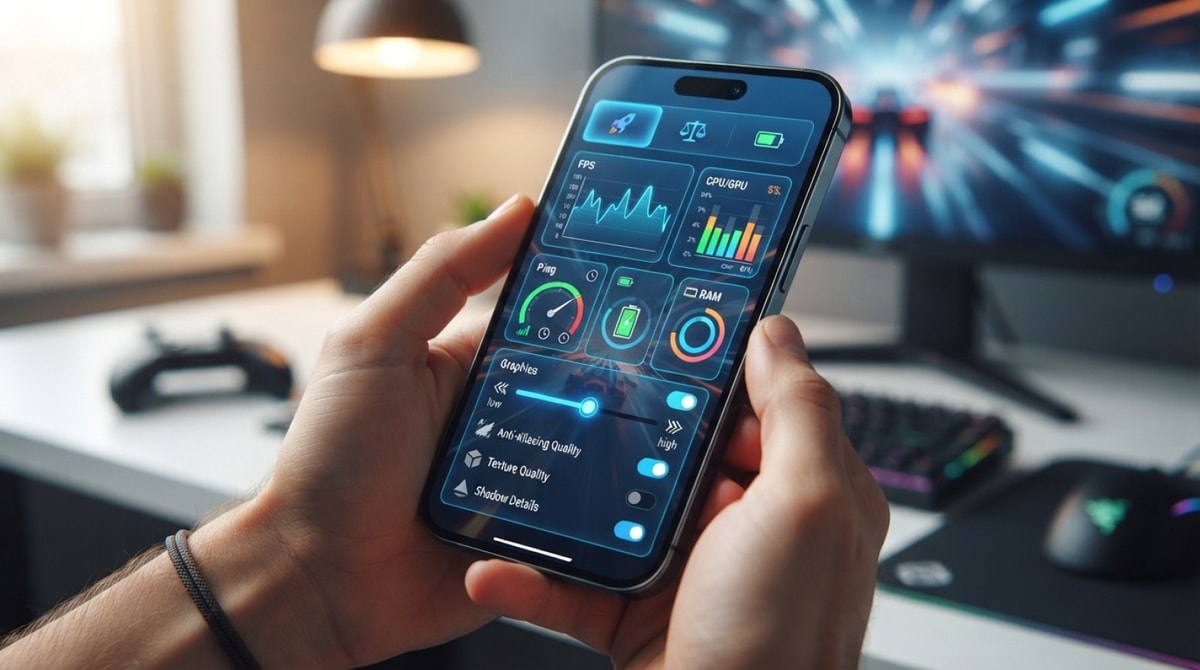
Fixing PUBG Mobile lag, sudden mid-match crashes, and ping spikes comes down to isolating hardware strain from network instability. Whether running on a budget Android phone or an iOS device, performance dips stem from three predictable technical bottlenecks: thermal throttling under heavy rendering loads, background memory starvation, or local network packet loss.
Most frame drops and connectivity errors can be eliminated through targeted in-game graphics configuration, operating system cache management, and built-in client repair utilities. Based on published technical specifications and standard device management protocols, you can maximize device responsiveness without needing hardware upgrades.
By systematically distinguishing client-side rendering bottlenecks from server routing issues, you can apply the exact setting adjustment required for your device and network environment.
Primary Drivers of PUBG Mobile Performance Degradation
Before adjusting individual settings, you need to determine whether performance issues stem from local hardware limits or network latency. Hardware-based lag shows up as choppy frame rates, physical device heat, and visual stuttering during intensive close-range firefights. Network-based lag, by contrast, causes delayed hit registration, character rubber-banding, and elevated on-screen ping counters while visual animations remain fluid.
To isolate the root cause quickly, review these primary degradation factors:
- Hardware Bottlenecks: Limited physical RAM, active background system processes, or aggressive CPU and GPU thermal throttling trigger sudden frame rate drops and mid-game app crashes.
- Network Latency: Weak Wi-Fi signal transmission, local bandwidth congestion, or incorrect regional server selection cause persistent high ping numbers and server connection drops.
- Corrupted Game Data: Fragmented cache build-up, incomplete update files, or corrupted patch data result in infinite loading screens and unexpected client crashes upon match entry.
Recognizing these distinct symptoms prevents ineffective troubleshooting. Lowering device temperature will not reduce high ping caused by routing to a distant server, nor will changing network settings fix frame drops caused by an overburdened mobile GPU.
Resolving PUBG Mobile Stuttering and Phone Overheating
Severe frame stuttering and thermal throttling occur when the mobile graphics processor operates beyond its sustained heat tolerance. As smartphone temperatures rise, internal system power controls automatically reduce processor clock speeds to protect hardware components, causing severe frame rate drops during busy combat scenes.
In-Game Graphics Tuning
To maintain peak frame rate stability and minimize touch input latency, configure display options to prioritize smooth animation over cosmetic rendering effects. Set Graphics quality to Smooth and elevate the Frame Rate setting to Extreme or 90 FPS, depending on what your device display panel officially supports. Lowering visual asset complexity significantly reduces GPU thermal output and frees up hardware memory bandwidth, preserving consistent frame rendering across extended gameplay sessions.
Disable power-intensive display options such as dynamic shadow rendering and high-definition anti-aliasing. Furthermore, turn off the auto-adjust graphics toggle within the settings menu. Allowing real-time resolution scaling causes unexpected frame drops whenever complex visual effects appear on screen.
Thermal and RAM Management
Sustained mobile gaming performance requires active heat management before thermal throttling activates. Remove thick protective phone cases during long gaming sessions to facilitate ambient heat transfer away from the phone body. Avoid playing while fast-charging the battery, as high-current charging generates substantial internal heat that accelerates hardware thermal limits.
On Android hardware, navigate to system settings to clear background application caches and terminate non-essential background services prior to launching the game. On iOS devices, force-close background apps and confirm that Low Power Mode is switched off, as power-saving profiles strictly cap maximum CPU and GPU clock frequencies.
Correcting High Latency and Server Disconnects
High network ping and unexpected disconnects disrupt real-time communication with game servers, leading to delayed shot registration and erratic character movement. While your physical distance to server centers dictates baseline latency, local network congestion and suboptimal signal routing frequently introduce fixable latency spikes.
Wi-Fi Stability Tricks
Wireless connection stability and low jitter matter significantly more for competitive mobile gaming than raw download speeds. Connect your mobile device to a 5GHz Wi-Fi band whenever possible, because standard 2.4GHz Wi-Fi spectrum suffers heavy signal interference from Bluetooth devices, microwaves, and neighboring wireless networks. If local Wi-Fi signals fluctuate unpredictably, switching to a high-speed cellular data connection often delivers far more consistent network packet delivery.
Power cycling your wireless router periodically clears internal buffer queues that cause packet loss over time. Ensure other devices on the same home network are not performing automated cloud backups, large software updates, or bandwidth-heavy video streams while you are in a match.
DNS and Server Selection
Always double-check that your lobby matchmaking settings select the regional server physically closest to your geographical location. Entering matchmaking on cross-region servers significantly increases round-trip packet transmission times due to physical distance constraints.
Configuring standard public DNS resolvers on your device, such as public DNS configurations from Google or Cloudflare, can optimize initial domain resolution speeds and stabilize route lookups. If persistent login errors or connection timeouts occur, utilize the official Routine Repair tool located on the game's initial login screen to fix corrupted connection files without losing account data.
Addressing Sudden Game Crashes and Black Screen Freezes
When PUBG Mobile crashes unexpectedly mid-match or remains frozen on a black loading screen, client memory saturation or corrupted local cache files are usually responsible. As intensive mobile games push operating system memory managers to their limits, residual data accumulation can starve the game executable of vital operational memory during heavy rendering events.
Clearing Temporary App Data
On Android systems, opening application settings allows you to clear the game's cache directly, stripping away unnecessary temporary files without deleting stored user control layouts or account credentials. While iOS manages application cache memory through operating system protocols, performing a full device reboot flushes unassigned temporary system memory accumulated during prolonged usage.
System Memory and Storage Verification
Maintaining ample free internal storage space is critical for mobile OS performance stability. Mobile operating systems generally require a healthy margin of total flash storage available—often recommended around 10 to 15 percent based on general platform guidelines—to manage temporary swap files and resource unpacking during active gameplay. Ensuring your device operating system remains updated guarantees that mobile graphics drivers and RAM allocation features operate under optimized system rules.
Executing In-Game Routine Repair and Resolving Login Errors
Authentication errors and failure-to-connect pop-ups are frequently caused by mismatched patch files or corrupted configuration assets rather than actual server outages. When facing persistent login failure prompts or failed resource download loops, utilizing built-in PUBG Mobile diagnostics repairs corrupted client files without requiring a complete app reinstall.
Routine Repair Execution
On the primary login screen, locate and tap the repair icon along the right-side interface to access client recovery controls. Selecting the Routine Repair option instructs the client to cross-reference core game resources against official repository servers upon application restart. This diagnostic process replaces damaged settings files and corrupted code components while fully preserving downloaded map packages, voice packs, and visual assets.
Account Sync and Network Verification
If authentication failures continue after completing a routine repair, logging out and clearing cached login tokens from associated social platform apps can restore clean account synchronization. Toggling between cellular data connections and home Wi-Fi networks also helps verify whether your network provider is blocking required gaming authorization endpoints.
Preventive Steps for Sustained Gameplay Stability
Maintaining smooth, reliable gameplay across major update releases requires establishing routine device maintenance practices. Periodically clearing temporary system files, keeping storage usage well under system capacity, and updating device firmware prevent performance degradation before entering competitive matches.
Essential maintenance routines for long-term stability include:
- Clear app cache regularly: Prevent residual background junk build-up on Android devices.
- Maintain free storage space: Keep sufficient free storage available for system swap operations based on device platform guidelines.
- Avoid playing while charging: Prevent excessive battery heating from triggering severe processor thermal throttling.
- Use official app updates: Download client updates exclusively through official platforms like Google Play Store and Apple App Store to maintain verified build integrity.
Adopting these maintenance protocols ensures visual frame rates remain high and connection disruptions stay to a minimum across all play sessions.


Comments
No comments yet. Be the first to share your thoughts.