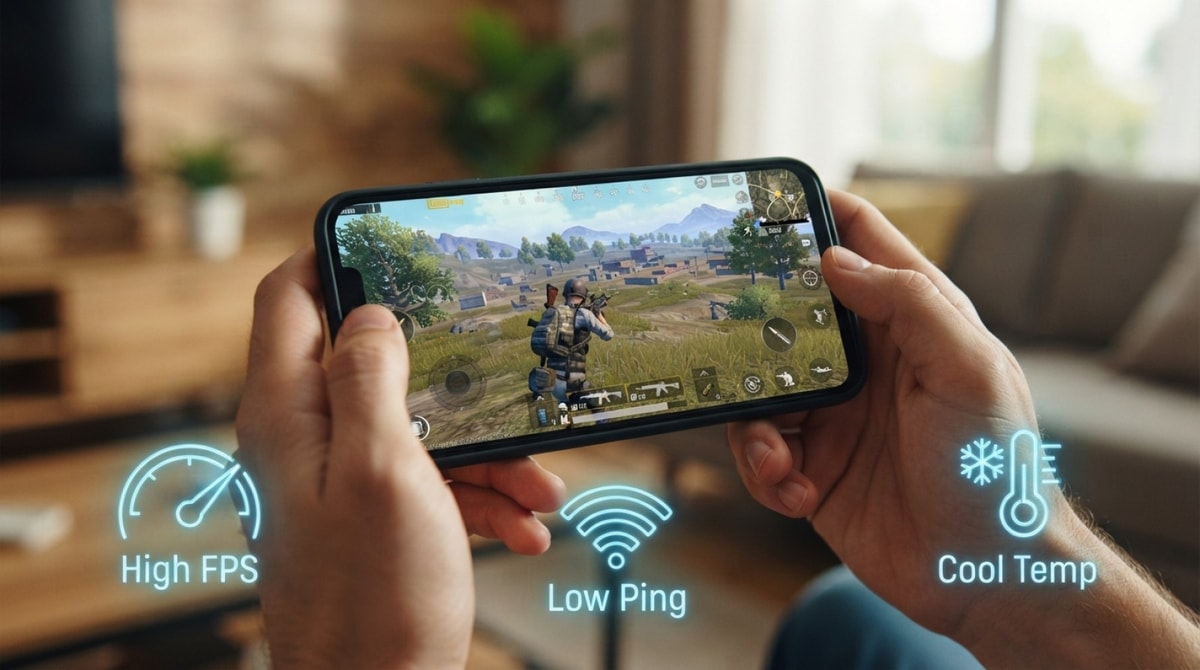
To achieve maximum FPS and eliminate lag in PUBG Mobile, configure your in-game graphics quality to Smooth, select the highest available frame rate tier, and disable dynamic resolution scaling. Sudden frame drops, choppy firefights, and delayed touch responses rarely stem from mobile network instability alone; incorrect graphics presets frequently overload the graphics processor and trigger severe thermal throttling.
Maximizing frame rate over visual resolution remains the most effective strategy for smooth competitive play. Lowering render quality, turning off anti-aliasing, and using native menu options allow your hardware to maintain stable frame rates across both budget smartphones and flagship devices.
Common PUBG Mobile Setting Mistakes That Cause FPS Drops
Inconsistent frame delivery during intense combat usually comes from improper graphic configurations. Selecting visual settings based on aesthetic realism places excessive demand on the mobile GPU. Rendering high resolutions, detailed shadows, and real-time reflections simultaneously causes internal hardware temperatures to spike. This thermal buildup forces the system software to throttle CPU and GPU clock speeds to protect hardware, resulting in sudden frame drops and input lag.
Frequent configuration mistakes that impair gameplay performance include:
- Selecting high visual presets: Running graphics on HD, HDR, or Ultra HD forces heavy rendering loads that restrict high frame rate availability.
- Enabling auto-adjust graphics: Allowing the engine to dynamically scale down resolution introduces sudden frame dips during heavy firefights.
- Activating anti-aliasing: Smoothing edge pixels consumes GPU resources without giving a practical competitive advantage.
- Using unauthorized configuration files: Modifying game files via external tools creates visual instability and risks account action under game policy.
Correcting these basic configuration errors helps maintain stable target frame rates during long match sessions across all hardware tiers.
Mistake 1: Prioritizing High Graphics Quality Over Frame Rate
Configuring PUBG Mobile for maximum visual fidelity is the fastest way to induce stuttering during combat encounters. Displaying complex shadows, atmospheric lighting, and high-definition textures strains memory bandwidth and mobile processing power. When hardware limits are exceeded, touch latency increases and aiming response feels heavy. Prioritizing fluid frame rates over graphical detail is vital for responsive controls.
Graphics preset selection
Setting the graphics option to Smooth graphics reduces visual clutter and decreases hardware workload on the processor. Based on published game technical parameters, selecting Smooth graphics unlocks the highest available Frame Rate setting supported by your specific phone or tablet model. Reducing texture density ensures system RAM stays clear and surface heat remains low during extended gameplay.
Frame rate priority
With Smooth graphics selected, set the Frame Rate option to the maximum available tier on your device, such as Extreme or 90 FPS (or up to 120 FPS on supported high-end hardware). Higher frame rates reduce display latency and update character motion faster on screen, granting a distinct reaction advantage in close-range gunfights. Locking frame delivery at your screen's highest stable setting prevents sudden drops during dense smoke or multi-squad combat.
Disabling auto-adjust graphics
The built-in Auto-adjust graphics setting automatically lowers resolution when frame drops occur, but it often creates additional stuttering. When the game engine detects heat accumulation, dynamic resolution changes produce visual hitches and momentary control delays. Turning off this feature maintains a predictable performance baseline, keeping manual control over rendering stability.
Mistake 2: Relying on Third-Party GFX Tools and Config Modifiers
Attempting to unlock unsupported frame rate tiers or hidden graphic parameters through external GFX apps or modified configuration files poses significant risks. While utility applications promise unlocked high FPS presets or modified asset files, they bypass built-in hardware safeguards and compromise account safety.
Ban risks under TOS
Utilizing third-party GFX tools or altering internal game configuration files directly violates the PUBG Mobile Terms of Service. Anti-cheat detection systems scan game file integrity and identify unauthorized rendering changes, routinely issuing 10-year account bans to violating profiles. Modifying client files risks permanent loss of account progress and digital items.
Native graphics customization
Safe performance optimization relies strictly on official options located within the main settings menu. Adjusting shadow toggles, selecting basic color styles like Soft or Colorful, and choosing moderate audio quality presets deliver legitimate performance gains without triggering anti-cheat flags. Tuning options within standard game menus ensures full account safety while maximizing supported device frame delivery.
Mistake 3: Overlooking Device Thermal Throttling and Battery Saver Modes
Ignoring system power settings and hardware heat dissipation is a primary reason players experience performance degradation during long PUBG Mobile sessions. Smartphones automatically restrict processor output when internal temperatures surpass critical thresholds. Running high render settings alongside active battery saver modes forces the system to reduce CPU and GPU clock speeds to manage power draw and heat. When hardware throttling kicks in, even optimized game settings cannot prevent sharp frame drops and slow touch responses.
System power-saving features prioritize battery longevity by capping processor frequencies and limiting display refresh rates. When a device operates under a low-power profile, operating system limits prevent the game engine from accessing full hardware capacity. Leaving battery saver profiles enabled bottlenecks system output, causing artificial frame rate caps and persistent micro-stutters in fast battles.
Understanding Thermal Throttling
Thermal throttling is an automated protection protocol integrated into modern mobile chipsets. Rendering high frame rates over extended sessions generates continuous thermal energy inside the phone chassis. If internal temperatures rise above safe operational parameters, the mobile operating system intentionally lowers chip clock speeds to protect internal components. In-game, this automatic throttle presents as sudden frame rate drops, delayed touch response, and temporary screen stuttering.
System Performance Optimization
Managing thermal throttling requires simple operational habits that control heat accumulation and prioritize active system resources. Enabling built-in game booster or performance modes focuses processor output specifically on PUBG Mobile while suppressing background task activity. Removing thick phone cases, avoiding playing while fast charging, and disabling system battery saver options prior to launching matches allow internal components to run at peak capacity without triggering unexpected thermal clock reductions.
Preemptive Rules to Maintain Stable FPS During Close-Range Fights
Maintaining high frame rates and quick touch input during intense close-quarters combat requires consistent device maintenance before launching matches. Close-range engagements place maximum instantaneous demands on hardware due to fast camera turns, particle rendering from smoke grenades, and multiple player models on screen. Following basic device maintenance routines ensures operational memory remains free and system performance stays predictable when frame stability matters most.
To establish a clean hardware baseline for smooth competitive play, follow these pre-game preparation steps:
- Clear active background apps: Close memory-intensive applications, web browsers, and social media platforms to free up operational RAM for the game engine.
- Disable background updates: Pause auto-downloading app updates and cloud synchronizations to prevent sudden CPU spikes and internet network interruptions.
- Maintain storage overhead: Ensure at least 15 percent of total internal storage remains empty to prevent system cache bottlenecks.
- Remove heavy phone cases: Take off protective rubber or plastic covers during long sessions to speed up heat dissipation from the back of the device.
Pre-Game Device Check
Performing a quick device reboot before competitive gaming sessions clears residual system cache leaks and resets background services consuming processor cycles. Furthermore, keeping device battery charge between 30 and 80 percent prevents system firmware from triggering low-battery power throttles during key moments in a match.
Final Verdict: The Optimal PUBG Mobile Setup for Smooth Gameplay
Achieving stable high frame rates and minimal input lag in PUBG Mobile depends on prioritizing rendering speed over visual fidelity. For competitive play on low-end or mid-range devices, configure your graphics to Smooth and unlock the highest frame rate tier your phone supports, such as Extreme or 90 FPS. If you play casually on a flagship phone and prefer visual realism over raw frame speed, HD or HDR presets are playable, though they will generate additional heat and increase battery drain. Always disable auto-adjust graphics, select clear color styles like Soft or Colorful, and refrain from using unauthorized third-party GFX applications to maintain system stability and safeguard your account against automated anti-cheat bans.
Optimizing sound and network settings further removes latent bottlenecks that disrupt competitive response. Setting audio quality to High rather than Ultra decreases real-time audio decoding load on mid-range processors without sacrificing spatial enemy cues. On the network side, connecting to an uncrowded 5GHz Wi-Fi network or maintaining a strong cellular connection reduces packet loss and eliminates latency spikes during intensive close-range firefights.


Comments
No comments yet. Be the first to share your thoughts.