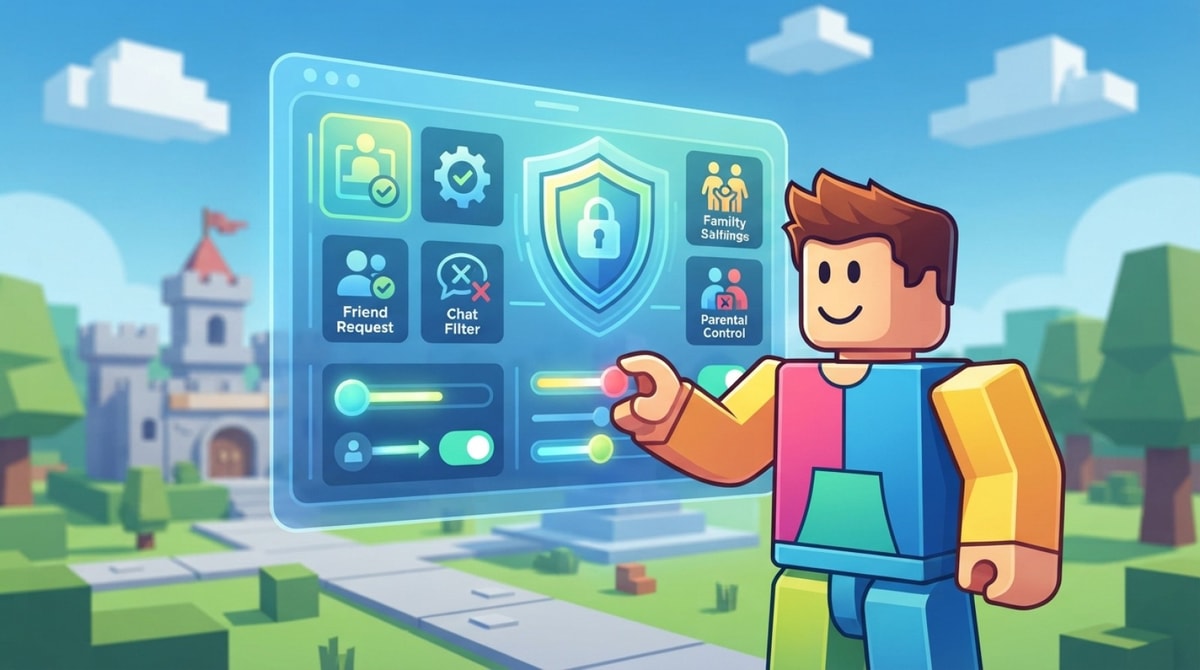
Configuring Roblox parental controls takes under ten minutes and prevents unvetted contact, unexpected Robux purchases, and age-inappropriate content. Because Roblox operates as a massive multiplayer ecosystem driven entirely by user-generated experiences, default account settings leave communication lines and game recommendations broad. Parents who set up dedicated account restrictions, a four-digit PIN, and verified email monitoring can maintain full oversight over their child's digital environment while allowing them to build and play safely.
Without tailored security boundaries, young players can encounter open text chat with unknown global users, stumble into experiences intended for older audiences, or unintentionally initiate digital currency transactions on attached store accounts. Fortunately, the platform provides direct security mechanisms designed specifically for family management. Setting up these features requires no complex technical knowledge, but applying them systematically ensures your child remains protected across mobile, console, and desktop platforms.
Why Is Setting Up Roblox Parental Controls Essential?
Managing a child's online activity on Roblox requires active configuration because the platform functions as both a social network and a massive game library. Unlike traditional single-player titles with static, pre-packaged gameplay, Roblox hosts millions of individual experiences built by independent creators across the globe. These range from basic obstacle courses and family-friendly roleplay towns to intricate competitive games and social hangout spaces that draw tens of thousands of simultaneous users.
Because players interact in real time within shared virtual servers, unsupervised accounts open immediate avenues for unvetted social interactions. Open text chat features allow any player on the same server to send messages, exposing younger children to foul language, peer pressure, or attempts by external users to move conversations to unmoderated third-party messaging applications. Locking down these interaction vectors before hand-off prevents risky contact without stripping away the core enjoyment of gameplay.
Financial management represents another major reason to configure parental safeguards early. Roblox runs on an internal digital currency called Robux, which players utilize to purchase avatar clothing, unique animations, special abilities, and exclusive access passes inside specific games. When credit cards or mobile store payment methods remain saved on a device without password prompts, children can easily trigger recurring charges in seconds. Implementing parental account controls establishes concrete financial guardrails, capping monthly expenditures and sending instant purchase receipts to your inbox.
Content Maturity Guidelines and Age Filters
To assist parents in filtering out unsuitable content, Roblox categorizes experiences using official Content Maturity Guidelines. These standardized ratings evaluate game mechanics, themes, and visual intensity to classify titles into four distinct age brackets: All Ages (or Minimal), 9+ (Mild), 13+ (Moderate), and 17+ (Restricted). Assigning account-level age limits automatically hides games above your chosen tier from search results and direct server join requests, guaranteeing that your child only accesses age-appropriate software based on official platform standards.
How Do You Lock Account Settings with a Parent PIN?
Enabling a Parent PIN is the single most important administrative safeguard on any Roblox account. Without a PIN enabled, any child who accesses the account settings menu on their tablet, phone, or computer can freely toggle off chat restrictions, raise content maturity tiers, or remove spending thresholds. Activating a four-digit PIN locks all security and privacy menus behind a private passkey known only to you.
To set up a Parent PIN on your child's account, follow these exact step-by-step instructions:
- Log into your child's account through a web browser or the official mobile application, then click or tap the Settings gear icon.
- Select the Parental Controls option from the left-hand navigation sidebar or dropdown menu.
- Scroll down to the Parent PIN section and click the toggle switch to flip it to the On position.
- Enter a secure 4-digit PIN that your child cannot easily guess (avoid predictable choices like birth years or repeating digits), then re-enter it to confirm.
- Type in your current account password when prompted to finalize and save the PIN configuration.
Once activated, any future attempt to adjust account privacy, re-enable global text chat, alter spending limits, or change email details will instantly demand this four-digit PIN. To ensure long-term account security, parents must link a verified parental email address to the account during setup. If you ever forget your custom PIN, recovery instructions and reset links are dispatched exclusively to this verified email address, preventing unauthorized account takeovers or accidental lockouts.
How Can You Limit Chat and Private Messages on Roblox?
Controlling who can communicate with your child is vital for safe online gaming. Roblox provides granular privacy tools that allow parents to scale back text interactions from open public chat down to closed friend circles or complete silence across all multiplayer servers.
Configuring Text Chat Restrictions
In-game text chat lets players communicate inside server lobbies and active matches. While automated platform filters obscure profanity, phone numbers, and address patterns, setting hardware and account boundaries offers far stronger protection. Parents can adjust these settings under the Privacy tab in account settings:
- Friends Only: Restricts text chat functionality exclusively to players on your child's approved friend list, blocking messages from unknown server participants.
- No One: Completely turns off in-game text chat and disables all private direct messaging across the entire platform, creating a completely isolated single-player communication mode.
- Custom Privacy Options: Permits independent management of who can send private messages, who can invite your child to private server instances, and who can join their active game sessions.
For younger children under twelve years old, setting text communication to No One or restricting interaction strictly to verified real-life friends eliminates contact risks from unfamiliar players. Regularly reviewing your child's active friend list through account settings ensures that unauthorized friend requests are cleared before communication occurs.
How Do Age Restrictions and Content Maturity Filters Work?
Filtering out mature or graphic game content relies on enforcing account-level Content Maturity limits. Based on published platform specifications, Roblox evaluates every experience submitted by developers before placing it into standard age tiers. Restricting account permissions to specific maturity levels instantly filters out inappropriate mechanics and visual themes across the platform.
Understanding Content Maturity Ratings
Roblox categorizes user-generated experiences into four distinct maturity tiers to help parents make informed choices based on official guidelines:
- Minimal / All Ages: Contains content suitable for general audiences with no intense violence, coarse language, or scary elements. Suitable for early childhood players.
- Mild / 9+: May feature repeated mild violence, comical light combat, or minor crude humor suited for pre-teen players.
- Moderate / 13+: Contains moderate realistic violence, mild blood effects, dark atmospheric themes, or light swearing intended for young teenagers.
- Restricted / 17+: Features mature themes, realistic violence, crude language, and strategic gambling themes, accessible strictly after age verification via legal identity documents.
By locking your child's account to the Minimal or Mild threshold under the Parental Controls menu, games with heavier themes or unmoderated community features are automatically blocked from appearing in search lists, recommendations, or friend join links.
How Do You Control Spending and Prevent Unwanted Purchases?
Preventing unauthorized transactions on mobile app stores or web browsers requires proactive financial management. Roblox utilizes its proprietary virtual currency, Robux, for purchasing avatar customization items, special abilities, and game passes. Unintended spending frequently occurs when credit card credentials remain cached inside app store settings or when monthly spending thresholds are left unset.
Setting Monthly Caps and Notification Alerts
Parents can apply clear, predictable financial limits directly within the account dashboard to maintain strict control over household gaming expenses:
- Monthly Spending Limits: Establishes a strict dollar spending cap for Robux purchases made within a single calendar month. Once the selected monetary limit is reached, all subsequent store transactions are automatically blocked until the next monthly billing cycle starts.
- Purchase Notification Emails: Triggers immediate real-time email receipts sent directly to the linked verified parental email address whenever a transaction attempt is processed on the account.
- App Store Authentication Guardrails: Requires explicit password or biometric authentication (such as Face ID or fingerprint scan) for every individual in-app purchase, preventing accidental tap-to-buy charges on shared family devices.
Activating these spending safeguards inside the Parental Controls menu gives parents complete financial clarity while providing teachable moments about digital money management for growing gamers.
Key Safety Takeaways and Parent Checklist
Maintaining long-term digital safety on Roblox requires combining system settings with consistent parental check-ins. Running through a quick monthly maintenance routine ensures that your chosen safety configurations remain active and aligned with your child's age and maturity level.
- Verify Parent PIN Status: Confirm that the 4-digit Parent PIN remains active and that account setting changes require passkey authorization.
- Audit the Friend List: Inspect your child's accepted friends list regularly and remove any unknown accounts or suspicious contacts.
- Check Communication Settings: Ensure text chat is restricted to Friends Only or No One according to your family's safety guidelines.
- Review Email Purchase Alerts: Monitor purchase receipts sent to your verified parental email account to verify all Robux activity.
- Confirm Content Maturity Cap: Check that content maturity filters remain set to All Ages or 9+ to block high-maturity experiences.
For children under ten, setting chat permissions to No One and enforcing an All Ages content filter provides the safest entry point. For pre-teens and teenagers, transitioning to Friends Only chat alongside a 9+ or 13+ content maturity filter offers an ideal balance between social engagement and effective digital protection.


Comments
No comments yet. Be the first to share your thoughts.